




Online content filtering stands as an essential tool which helps maintain both safety and appropriateness during web browsing specifically for families and educators and any person needing to block inappropriate website content. Users can enjoy peace of mind through content filtering because it enables them to block inappropriate material as well as protect children from explicit content.
Here, we’ll focus on enabling content filtering on various popular web browsers, including the unique Kahf Browser.
Step-by-Step Guide to Enabling Content Filtering on Popular Browsers
1. Google Chrome
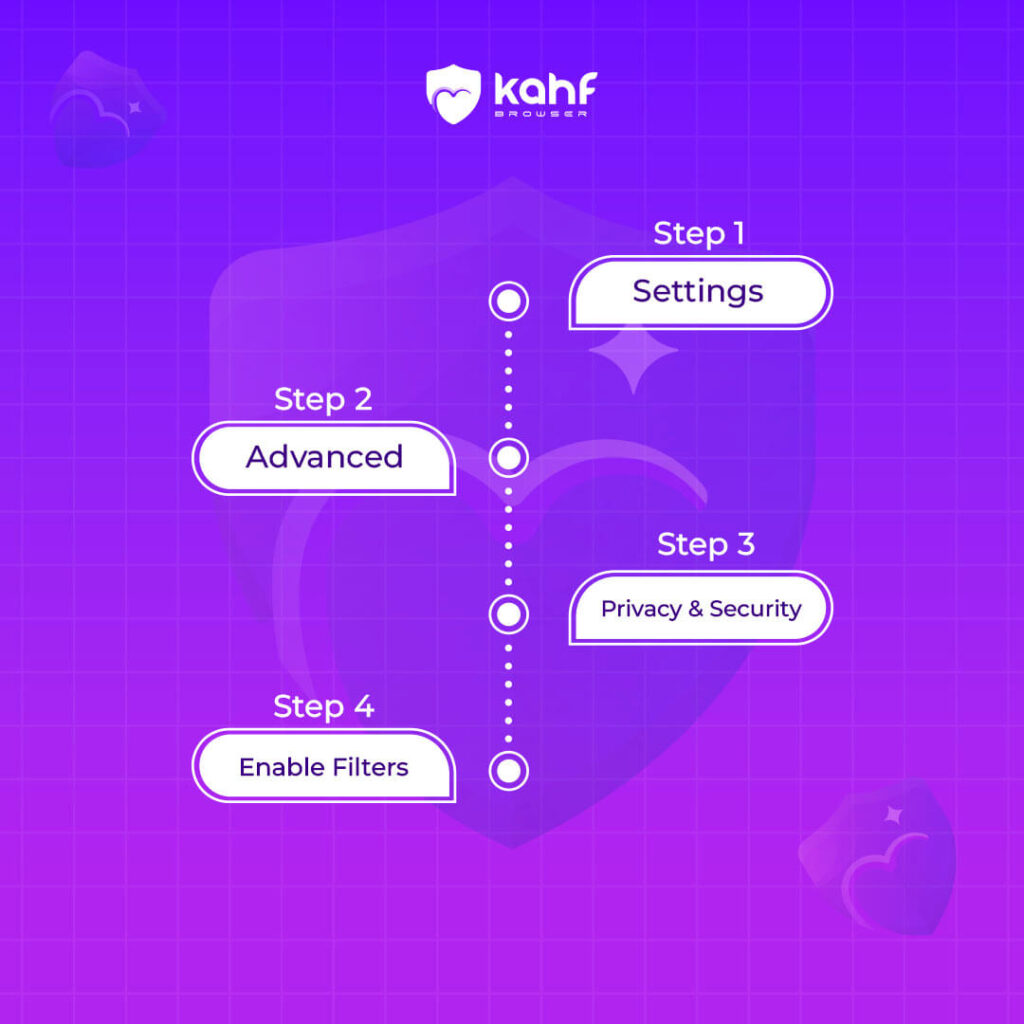
- Users need to use three vertical dots located in the top-right section then select “Settings” from the list.
- After scrolling down, expand the advanced settings by clicking on “Advanced” under the Settings menu.
- Users should access “Content Settings” from under “Privacy and Security” in the interface.
- Enable Filters: Here, you can manage permissions for cookies, JavaScript, pop-ups, and more. To block adult content, consider using a third-party extension like “Blocksi” or “WebFilter.”
2. Firefox
- Access the preferences through the top right three horizontal lines and choose “Preferences.”
- To access the Privacy & Security settings navigate to the section having this name through “Preferences.”
- You can establish tracking protection in the “Content Blocking” section.
- For more robust filtering, install add-ons such as “uBlock Origin” or “FoxFilter.”
3. Microsoft Edge
- Settings and More: Click on the three horizontal dots in the upper-right corner and select “Settings.”
- View Advanced Settings: Scroll down to the bottom and click on “View advanced settings.”
- Privacy and Services: Under “Privacy and Services,” manage permissions and content settings.
- Parental Controls: For more comprehensive filtering, use Microsoft’s Family Safety features available through your Microsoft account
4. Safari
- Preferences: Click on “Safari” in the top menu and select “Preferences.”
- Websites: Navigate to the “Websites” tab to manage website-specific settings.
- Content Blockers: Enable content blockers by installing extensions like “Wipr” or “AdGuard.”
- Parental Controls: Use macOS’s built-in parental control settings available in “System Preferences” under “Screen Time.”
5. Kahf Browser
- Kahf Browser offers a unique and comprehensive content filtering system designed to align with Islamic principles and provide a halal browsing experience.
- Kahf Browser stands out with its Shariah-compliant content filtering, blocking haram material and protecting privacy. Users can access Settings, enable filtering, customize categories, add keywords, and set up user profiles.
- Regular monitoring and updates ensure ongoing effectiveness. The feature enables users to choose which content appears on their screen for ultimate web security combined with ethical standards.
Installing content filtering through your web browser serves as your first defense to protect you from inappropriate content. All browsers including Chrome, Firefox, Edge, Safari and Kahf Browser have built-in tools which let users block unwanted content as well as ensure privacy protection. The implementation of these procedures enables users to create browsers that reflect their principles while shielding their digital activity.
Introduce to Kahf Browser’s Content Filtering
Kahf Browser’s content filtering system is one of its standout features, designed to block any haram (forbidden) content and create a safe, halal browsing experience. This beneficial tool helps families and educators as well as religious users to maintain online activities that comply with Islamic Law. The content filtering option provides a sense of security while browsing the internet since it successfully prevents objectionable content from appearing.
Step-by-Step Guide to Enabling Content Filtering on Kahf Browser
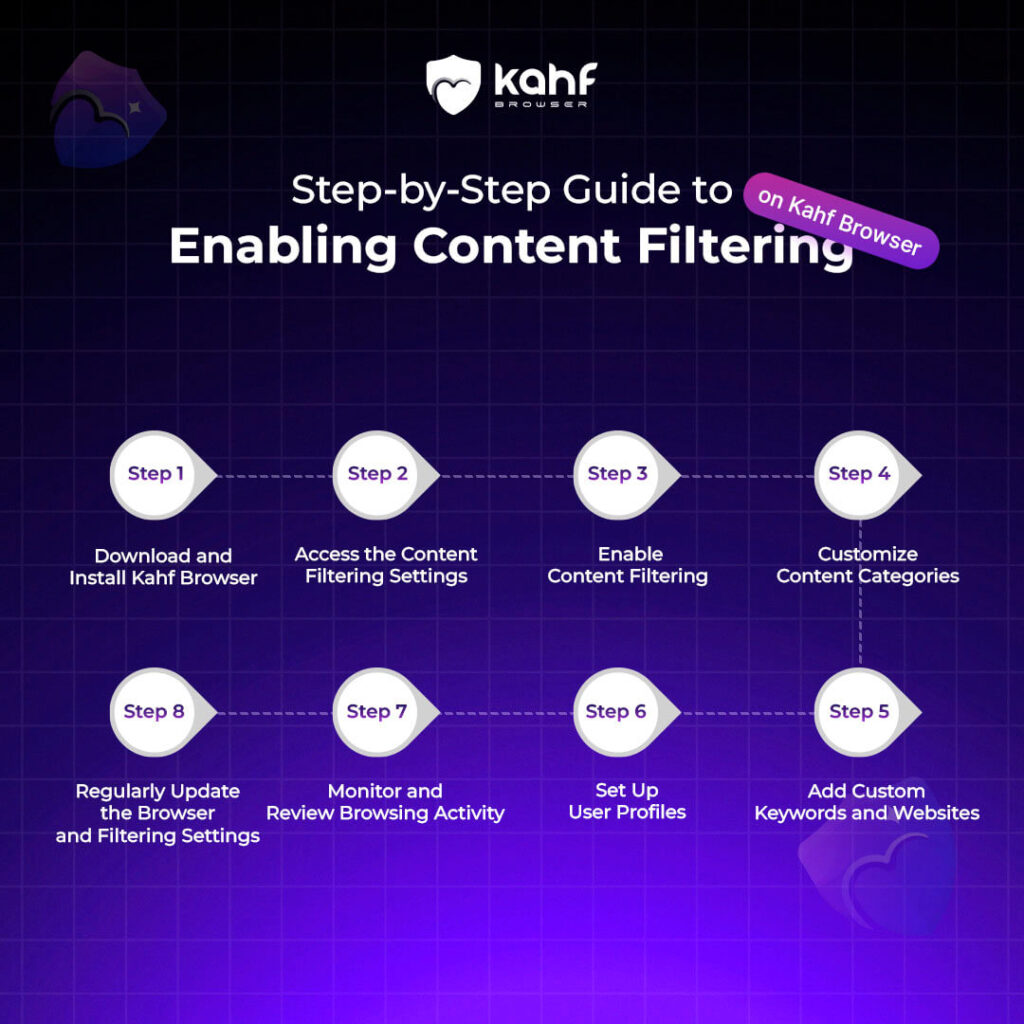
Step 1: Download and Install Kahf Browser
If you haven’t already installed Kahf Browser, you can download it from the official website. The installation process is straightforward and similar to other web browsers:
- Visit the Kahf Browser official website.
- Click on the “Download” button.
- After downloading the installer users must execute the program and where prompted complete the setup process.
Step 2: Access the Content Filtering Settings
Once Kahf Browser is installed, follow these steps to access and enable content filtering:
- Open Kahf Browser.
- Open the browser window and click the menu icon showing horizontal lines or dots found in its upper-right corner.
- Select “Settings” from the dropdown menu.
- You will locate the “Content Filtering” section or the “Parental Controls” section through the Settings menu. The labeling of this feature may differ but it will consist of similar terms.
Step 3: Enable Content Filtering
The Content Filtering section presents different options which users can use to customize their filtering choices. There are three simple steps for enabling content filtering which you can follow after going to “Settings”:
- Toggle the switch to enable content filtering. This action will activate the filtering system, blocking inappropriate content.
- Configure Filtering Levels:
Kahf Browser allows you to set different filtering levels based on your preferences. These levels may include:
Strict: Blocks all content that is potentially haram or inappropriate. This level is ideal for young children and strict adherence to Islamic principles.
Moderate: Allows some leniency for content that may not be strictly haram but still maintains a high level of filtering.
Custom: Offers the flexibility to customize the filtering settings based on specific keywords, categories, or websites.
Step 4: Customize Content Categories
Kahf Browser provides the option to customize content categories that you want to block or allow. Here’s how to configure these settings:
- In the Content Filtering section, look for an option to “Customize Categories” or “Manage Content.”
- You will see a list of content categories, such as: Adult Content
Violence
Gambling
Alcohol and Drugs
Social Media
Entertainment - Select the categories you want to block by checking the corresponding boxes. You can also specify any categories you want to allow, even if they are typically blocked by default.
Step 5: Add Custom Keywords and Websites
To further refine your content filtering, Kahf Browser allows you to add custom keywords and websites. Here’s how to do it:
- In the Content Filtering section, look for options to “Add Keywords” or “Block/Allow Websites.”
- Custom Keywords: Enter specific keywords that you want the browser to block. Any content containing these keywords will be filtered out.
You can also add keywords to an “Allow List” if there are specific terms that should bypass the filtering system.
- Block/Allow Websites: Enter the URLs of websites you want to block. Any attempt to access these websites will be denied. Similarly, you can add websites to an “Allow List” if there are specific sites you trust and want to access freely.
Step 6: Set Up User Profiles
Kahf Browser allows you to create user profiles with individual content filtering settings. This feature is particularly useful for families with multiple users:
- In the Content Filtering section, look for an option to “Create User Profiles” or “Manage Users.”
- Create a New Profile:
Click on “Add Profile” or “New User.”
Enter a profile name and set a password if needed.
Customize the content filtering settings for this profile based on the user’s age and browsing needs.
- Switch Between Profiles:
You can access profile switching options through the upper-right user icon then choose any available profile.
Users can enjoy customized content filtering settings for every profile they create to obtain personalized security during their browsing.
Step 7: Monitor and Review Browsing Activity
Kahf Browser includes tools to monitor and review browsing activity, providing insights into the effectiveness of the content filtering system:
- In the Content Filtering section, look for an option to “Review Activity” or “Browsing History.”
- View Browsing History:
Access the browsing history to see which websites were visited and whether any content was blocked. This feature helps you understand the browsing habits of different users and adjust the filtering settings as needed.
- Activity Reports:
Generate activity reports to get a comprehensive overview of the browsing activities and filtering actions.
Use these reports to identify any potential issues and make informed decisions about the filtering settings.
Step 8: Regularly Update the Browser and Filtering Settings
To ensure optimal performance and security, it is important to keep Kahf Browser and its filtering settings up to date:
- Automatic Updates:
- A person should enable automatic updates in the Settings to operate with the newest version containing current security patches.
- Update filtering lists:
- Regularly update the filtering lists to include new keywords, websites, and content categories.
- The content filtering system protects itself from emerging threats by continuously supporting its ability to detect new content types.
Kahf Browser provides an adaptable content filtering solution which creates a perfect solution for users who value their safety and privacy and rely on Islamic moral codes to browse. This guide allows users to implement content filtering in Kahf Browser which creates an environment suitable for both safety and following Islamic guidelines. The combination of excellent features and intuitive interface in Kahf Browser enables users to assert control over their internet journey thus creating secure digital connections.