



We have all been there. You sit down to work, open a browser, and suddenly a sidebar ad or a “suggested video” catches your eye. Ten minutes later, you are doom-scrolling instead of working.
For parents, the stakes are even higher. You hand a tablet to your child for schoolwork, worrying that one wrong click will lead them to harmful content.
Most browsers treat “Safe Search” as a simple on/off switch buried in the settings. Kahf Browser does it differently. We built a browser for people who value focus, faith, and family safety.
Whether you are a “Productive Professional” like Hasib from London who wants a clean interface, or a parent like Mariam in Sydney worrying about inappropriate content reaching her kids, this guide explains exactly how to control your browsing experience.
The “Halal Filtering Layer”: How It Works
Before you start toggling settings, it is important to understand what is happening under the hood. Standard browsers rely on Google or Bing to filter results. The problem? Those search engines often let “borderline” content slip through—ads, lingerie popups, or gambling sites.
Kahf adds a Halal Filtering Layer that works in three stages:
- Forced Strict Mode: We automatically force search engines (Google, Bing, YouTube) into their strictest safety modes.
- Universal Content Filter: We block known haram categories (adult content, gambling) even if the search engine misses them.
- AI-Powered Blur: Our AI detects and blurs skin-heavy images and video blurring in real-time before they load.
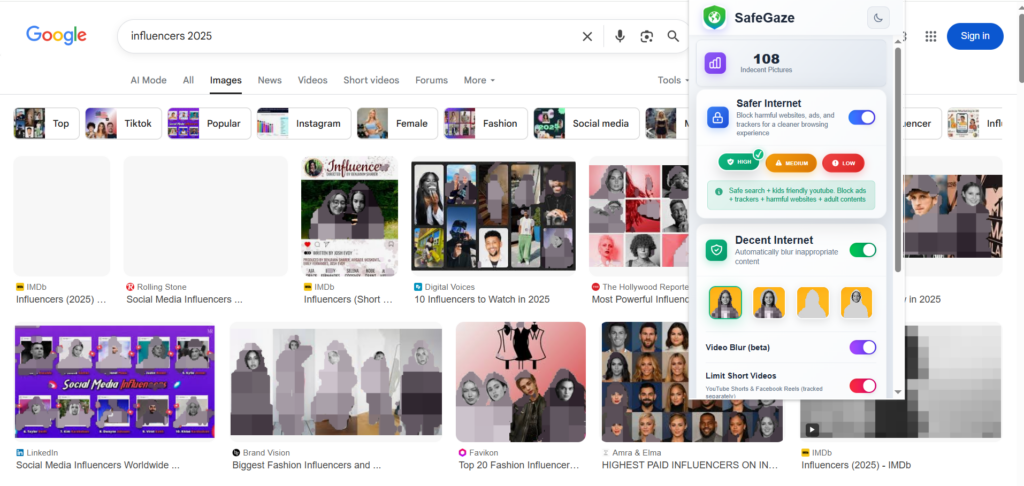
This multi-layered approach is designed for users like ethical professionals who actively avoid mainstream internet risks to protect their eyes and Imaan.
How to Adjust Your Safe Search Settings
Sometimes you need to adjust these filters—perhaps for medical research or specific work tasks. Here is how to handle it without compromising your security.
On Desktop
- Open Kahf Browser.
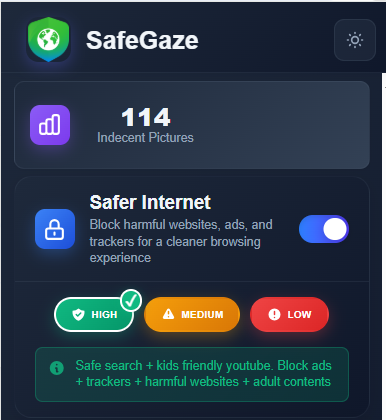
- Click the Shield Icon: Located in the address bar (Kahf Guard).
- Navigate: Safer Internet (Block harmful websites, ads, and trackers for a cleaner browsing experience).
- Toggle “Safer Internet”:
- ON: Enforces strict mode on all search engines.
- OFF: Reverts to standard search engine settings. Note: Kahf’s core blacklists for adult sites remain active to prevent accidental exposure.
On Mobile (Android/iOS)
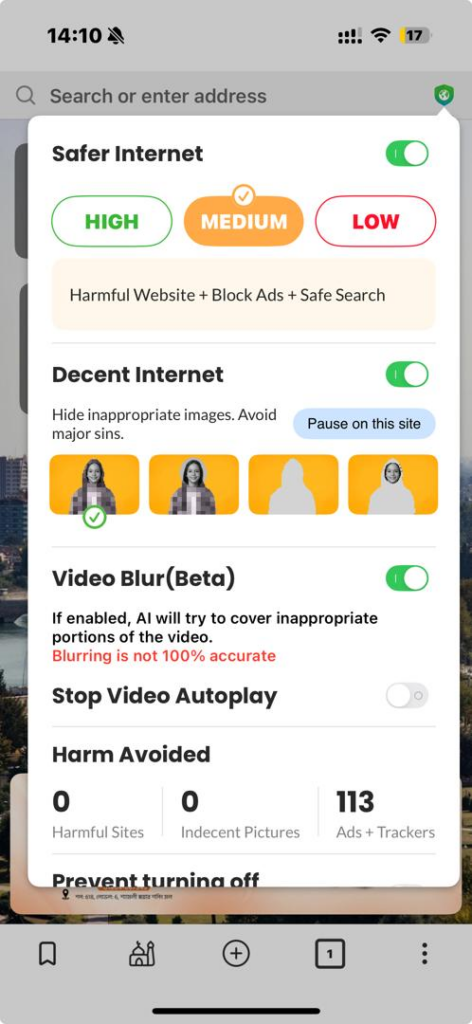
- Tap the Menu (three dots/lines) in the bottom right.
- Go to Settings > Privacy & Security.
- Tap Safe Browsing Mode.
- Choose Strict, Moderate, or Custom.
Pro Tip: If you are looking for “how to turn off safe search” completely, ensure you are not in a locked Family Mode.
Using Kahf Family Mode for Child Safety
For parents, the biggest fear is a child bypassing the filter. Kids are tech-savvy; they know how to find the disable button in standard browsers. Kahf Family Mode solves this by locking the safe search settings at the root.
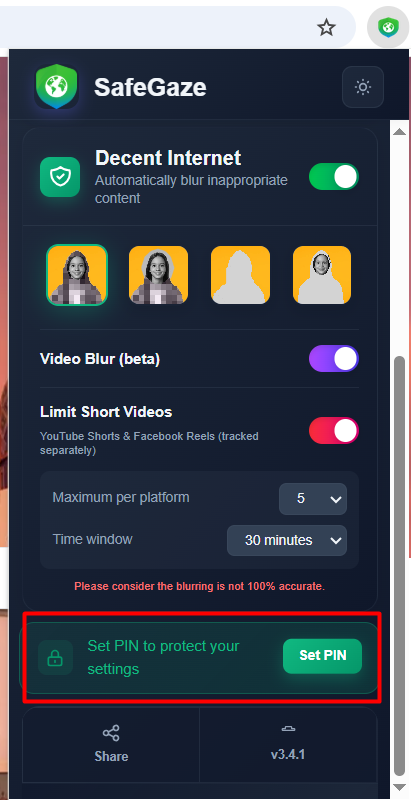
1. Set a PIN (First Time Setup)
- Open Kahf Browser and go to Settings.
- Select Family Protection (or Family Mode).
- Tap Set PIN Code.
- Enter a secure 4-digit PIN that only you know.
- Re-enter the PIN to confirm.
- Enable the “Lock Settings” toggle to activate protection.
2. How to Update Your PIN
Regularly changing your PIN ensures better security.
- Navigate to Settings > Family Protection.
- Tap Change PIN.
- Enter your Current PIN to verify your identity.
- Enter your New PIN and confirm it.
3. Making Changes to Locked Settings
Once locked, critical settings (like Safe Search or Ad Blocking) cannot be changed without approval.
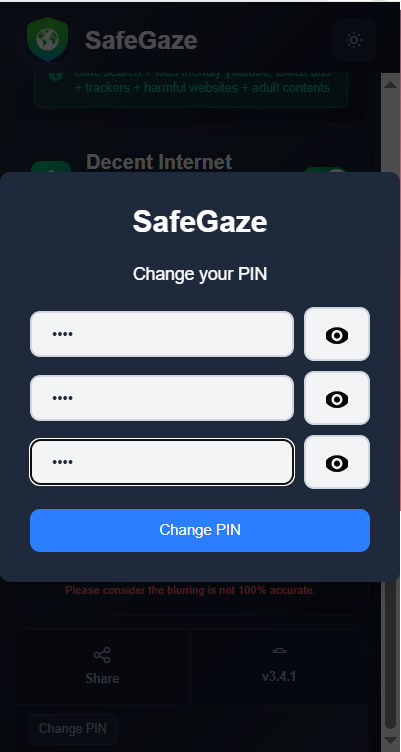
- Try to toggle a setting (e.g., turning “Safer Internet” OFF).
- A prompt will appear asking for the Admin PIN.
- Enter your 4-digit code to unlock the setting temporarily.
This provides the robust safety that standard parental control apps often fail to deliver.
Alt Tag: Comparison of Kahf Browser Safe Search Settings vs Chrome and Safari
This feature directly addresses the needs of parents who are “tired of parental control apps that don’t work well”. It ensures that even if your child tries to bypass the filter, the browser itself stops them.
Why Can’t I Turn Safe Search Off? (Troubleshooting)
If you are trying to change a setting and it won’t budge, here is the likely culprit:
- Family Mode is On: You need the PIN mentioned above.
- ISP Restrictions: In some regions, your Internet Service Provider enforces filters. Kahf’s built-in DNS settings can sometimes help you navigate this securely.
- Work/School Device: If your device is managed by an IT department, they may have locked browser protocols.
The Verdict: Control vs. Clutter
You don’t need to sacrifice performance for safety. Users like Omar, a gamer and university student, want speed and malware protection without the popups.
By managing your Safe Search settings correctly in Kahf, you get the best of both worlds: a fast, productive browser for work, and a “digital guardian” for your family.
Ready to clean up your digital life?