




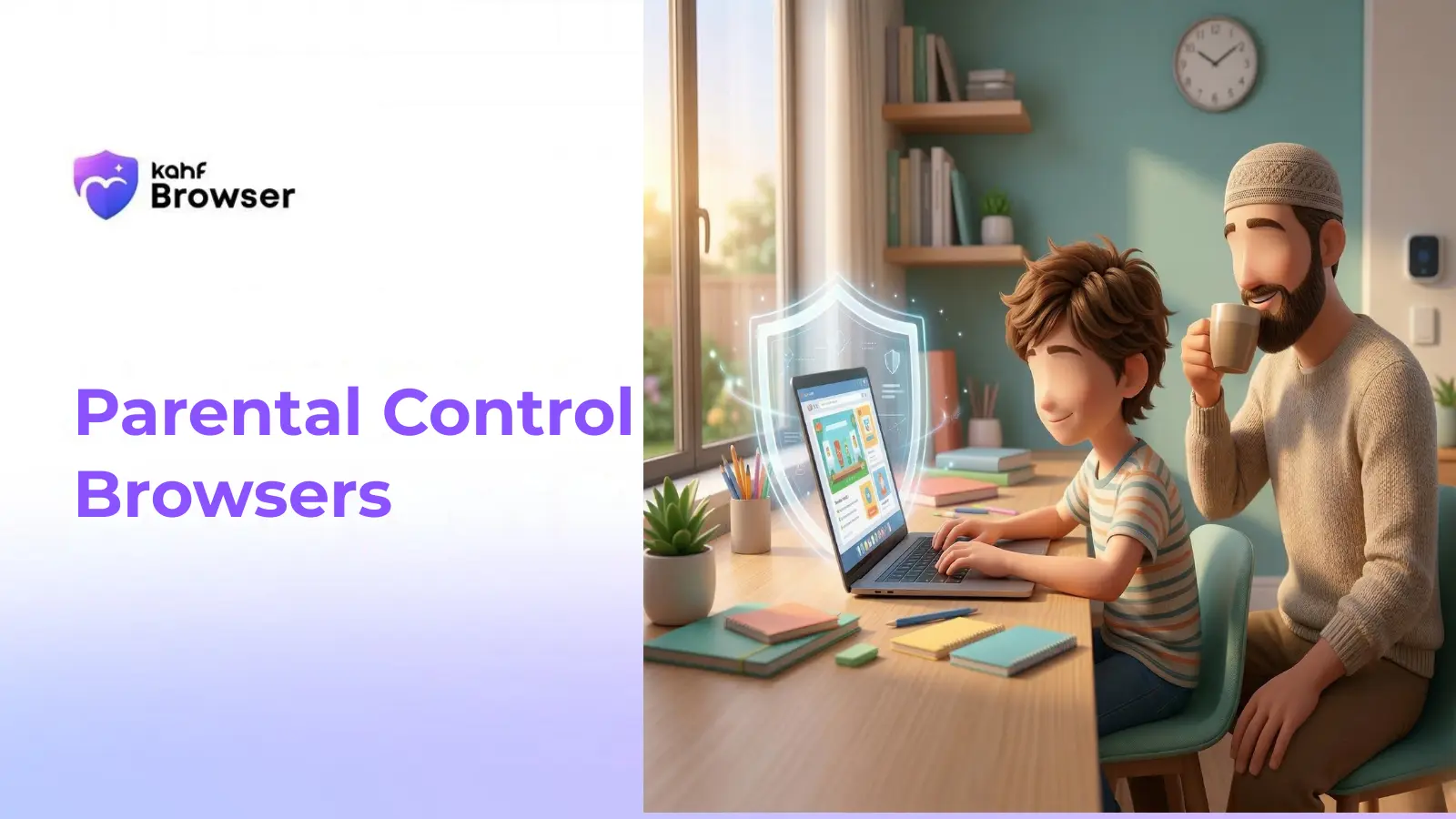
What Are Parental Controls?
Parental controls are features that allow parents to monitor, restrict, and manage their children's online activities. Modern browsers offer sophisticated parental control systems that go far beyond simple website blocking, providing detailed activity reports, time management tools, and age-appropriate content filtering.
Remote Management
Control settings from your phone or computer, even when you're not home.
Activity Reports
Detailed logs of websites visited, apps used, and time spent online.
Screen Time Limits
Set daily time limits and schedule device-free hours for healthy habits.
App Blocking
Prevent access to specific apps or websites by category or URL.
Safe Search
Enforce safe search modes on Google, Bing, and other search engines.
Password Protection
Require parental approval before installing apps or changing settings.
Feature-by-Feature Comparison
| Feature | Kahf | Chrome | Safari | Firefox | Edge |
|---|---|---|---|---|---|
| Website Blocking | ✓ | ✓ | ✓ | ○ | ✓ |
| App Restrictions | ✓ | ✓ | ✓ | ○ | ✓ |
| Screen Time Limits | ✓ | ✓ | ✓ | ○ | ✓ |
| Activity Reports | ✓ | ✓ | ✓ | ○ | ✓ |
| Remote Management | ✓ | ✓ | ✓ | ○ | ✓ |
| Safe Search Lock | ✓ | ✓ | ✓ | ✓ | ✓ |
| Content Filtering | ✓ | ○ | ○ | ○ | ○ |
| AI-Powered Blocking | ✓ | ○ | ○ | ○ | ○ |
| Zero Data Collection | ✓ | ○ | ✓ | ✓ | ○ |
| Halal Content Focus | ✓ | ○ | ○ | ○ | ○ |
✓ = Full Support | ○ = Limited Support | — = Not Available
Detailed Browser Reviews
Kahf Browser
Rating: ★★★★★ 4.9/5
AI-powered halal browser with on-device content filtering, automatic inappropriate image blurring, and zero data collection.
✓ Pros
- ✓ AI-powered content filtering detects harmful content automatically
- ✓ Zero data collection - complete privacy for children
- ✓ Halal-focused filtering aligns with Islamic values
- ✓ On-device processing means no remote servers storing data
- ✓ Automatic image blurring for inappropriate content
✗ Cons
- ✗ Newer browser with smaller user base
- ✗ Limited integration with other family management tools
- ✗ Fewer customization options than established browsers
Best for: Muslim families and privacy-conscious parents
Google Chrome with Family Link
Rating: ★★★★☆ 4.2/5
Industry-standard browser with Google Family Link integration for remote management and screen time controls.
✓ Pros
- ✓ Seamless integration with Google ecosystem
- ✓ Detailed activity reports and app usage tracking
- ✓ Works across Android, Chromebook, and Chrome OS
- ✓ Easy setup and user-friendly interface
- ✓ Regular updates and continuous improvements
✗ Cons
- ✗ Google collects significant data for advertising
- ✗ Limited content filtering capabilities
- ✗ Requires Google account for full functionality
- ✗ Some features only available on Android
Best for: Families already invested in Google ecosystem
Apple Safari with Screen Time
Rating: ★★★☆☆ 3.9/5
Apple's native browser with integrated Screen Time controls and content restrictions for iOS and macOS.
✓ Pros
- ✓ Deeply integrated with iOS and macOS
- ✓ Strong privacy protections built-in
- ✓ Simple, intuitive parental controls
- ✓ Cross-device synchronization
- ✓ Content restrictions by category
✗ Cons
- ✗ Only works within Apple ecosystem
- ✗ Limited customization options
- ✗ Less detailed activity reporting
- ✗ Expensive compared to alternatives
Best for: Apple device users seeking simplicity
Mozilla Firefox
Rating: ★★★★☆ 4.1/5
Privacy-first browser that automatically blocks trackers and ads, with strong community support.
✓ Pros
- ✓ Strong privacy focus and open-source
- ✓ Built-in tracker blocking
- ✓ Cross-platform compatibility
- ✓ No data collection for advertising
- ✓ Customizable through extensions
✗ Cons
- ✗ Limited native parental control features
- ✗ Requires third-party extensions for advanced controls
- ✗ Smaller parental control ecosystem
- ✗ Less suitable for younger children
Best for: Tech-savvy parents who value privacy
How to Set Up Parental Controls
Choose Your Browser
Select a browser that matches your family's needs and devices. Consider whether you need cross-platform support and specific features like content filtering or AI-powered protection.
Create Separate Profiles
Set up individual profiles for each child with age-appropriate restrictions. Most browsers allow customization based on age groups (5-8, 9-12, 13+).
Configure Content Filters
Enable content filtering, safe search, and website blocking. Choose categories to block (adult, violence, gambling, etc.) or specify individual sites.
Set Time Limits
Establish daily screen time limits and schedule device-free hours. Most browsers allow different limits for weekdays and weekends.
Enable Monitoring
Turn on activity logging and reports. Review weekly or monthly reports to understand your child's browsing habits and identify concerns.
Communicate with Your Child
Explain why parental controls are in place and discuss online safety. Build trust through open dialogue rather than surveillance alone.
Explore Related Topics
Best Browser for Kids in 2026
Complete guide to choosing the safest browser for your children.
Learn MoreFamily Internet Filter Solutions
Advanced filtering solutions for comprehensive family protection.
Learn MoreScreen Time Guidelines for Muslim Kids
Health recommendations and Islamic perspectives on managing children's screen time.
Learn MoreMuslim Parenting in the Digital Age
Practical strategies for raising digitally-aware children in today's world.
Learn MoreParental Control FAQs
Ready to Protect Your Family?
Start with Kahf Browser and experience the most advanced parental controls combined with zero data collection.
Download Kahf Browser